
Software Setup
Unlike other NAS devices out on the market, the N5200B Pro requires a bit of initial setup before you can do anything with the disks. You’ll need to figure out how you want to set them up and then execute the setup using the web interface. Examples of different setups include the ability to run a straight RAID 5 array with a hot spare, or even two seperate RAID arrays (a RAID 0 and a RAID 1 for example) on the same machine, and of course, your iSCSI partitions. In a sense, it’s kind of a good thing that you need to manually figure out what to do before you do it, but for a lot of people that just want it to auto configure and do its thing like some competing products on the market, it can be a bit of a handful.
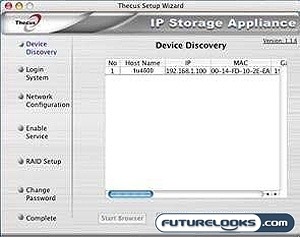
The only real piece of software you come across is the setup utility. This simple utility included on one of the setup disks allows you to find the NAS on your network and setup basic features to get you able to login to the web interface through your browser of choice. This is necessary especially if your network does not use the default IP address format that the N5200B Pro comes standard with. However, once you locate the N5200B Pro, you’ll be able to do basic setup to get the ball rolling. Then you never see this application again as all the other stuff is done through your browser.
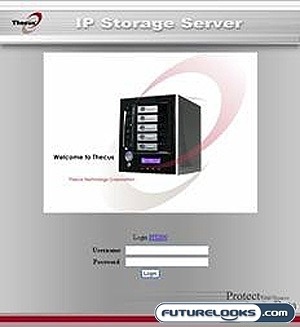
Once you’ve got the setup done, you will be able to punch in the N5200B Pro’s IP and login to the device. From there, you will configure your services, RAID setup, permissions and other device settings including whether you want the dual Gigabit Ethernet ports to support fail over or load balancing. To keep things simple, we setup the N5200B Pro to use all five of our Seagate 1TB drives in a RAID 5 setup and allocated 5% to an ISCSI partition that we could mess around with. We also set the Gigabit ethernet ports to do fail over. From start to finish, it took roughly thirteen hours for this process to complete. The web interface isn’t the prettiest thing you’ve ever seen, but it does do the job and is fairly snappy.
Although the process isn’t automatic in the sense that you can just insert a disk and have the device make use of it immediately, the number of drive configurations you can setup makes this device highly customizable. So in a sense, it’s good that it doesn’t take the drive and do what it wants with it. The downside is that you really need to know what you’re doing in advance: The web interface isn’t particularly helpful. I found most of my answers looking around the various Thecus support forums and picking through the manual. You sort of need to plan out how you want things to setup before actually doing it because if you take all the disks and make a RAID 5 array like we did, you can’t really go back easily without starting over again. That likely means another 13 hrs of waiting around.
With all the drives functioning properly in a RAID 5 array, we proceed to checking out the performance of this product.
System Setup
Again, we’d like to thank Seagate Technology for graciously providuing us with five of their enterprise level ES.2 Barracuda 1 TB hard drives for our enjoyment. All benchmarks were run on the following system:
- AMD Phenom 9900E 2.6GHz Quad Core CPU (Provided by AMD)
- Asus M3A32-MVP Deluxe/WiFi-AP 790FX Motherboard (Provided by ASUS)
- CORSAIR XMS2 DHX 4GB DDR2-800 Memory Kit (Provided by CORSAIR)
- Sapphire ATOMIC HD3870 Video Card (Provided by Sapphire)
- Western Digital Velociraptor WD3000GLFS Hard Drive (Provided by Western Digital)
- HighSpeedPC Top Deck Tech Station (Provided by HighSpeedPC)
- ANTEC Quattro 1000 Watt Power Supply (Provided by ANTEC)
Noise and Power Consumption
Since a device like this would be turned on 24/7, we should be concerned about the noise levels and power consumption. After all, no one wants a noisy little box jacking up our utility bills in the office. Using a noise level meter, we were able to pin down noise levels of 50 dB from the front of the device. We took power consumption numbers of the N5200B Pro at idle and found that it consumed about 84 Watts. We simulated load by doing a file system check and found that this increased power consumption to around 98 Watts. The N5200B Pro does come with power management capabilities, allowing you to further reduce consumption to your needs.
Real-Time Price and Stock Check – Find More Network Storage Products