
Performance
For my initial test, I only hooked up the Saitek Cyborg headset through the stereo connector. Even when I was listening to music through YouTube, I was thoroughly impressed with the sound quality. The bass was rich and clean, and nothing sounded washed out at all. This held true for watching various videos and listening to my MP3 collection as well, whether it be rap, rock, or anything in between.
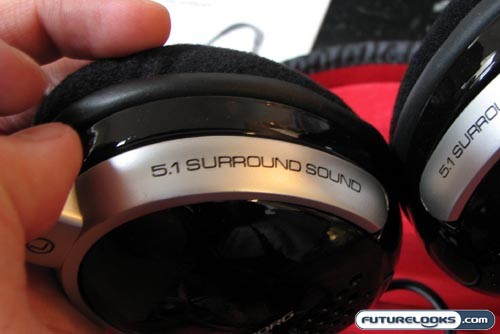
Switching over to the 5.1 configuration for gaming and movies, I am pleased to report that the sound quality was maintained. The gaming experience isn’t quite as satisfying as having a real 5.1 speaker system, but this about as close as it’s going to get with a set of headphones. You can very clearly distinguish between sounds coming from the left, right, center, and behind you. The six speaker system is an absolute dream.
Software and Configuration
To install the software, you must first plug in the Cyborg headset via the USB connection and ensure that the switch is set to 5.1 mode. After that, you simply insert the provided CD and follow the instructions. You have the option of installing the required software alone or you can accompany it with the demo software as well.
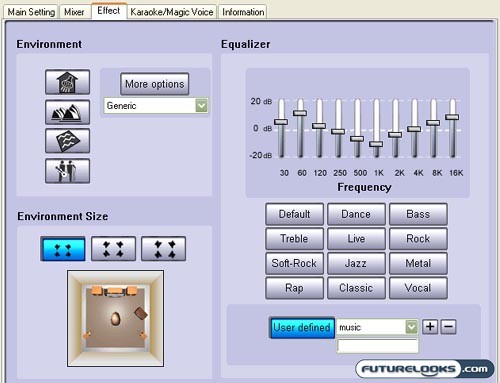
The configuration software lets you set up all sorts of options revolving around your aural experience. This includes a number of pre-defined equalizer settings and you can further customize these to your liking, saving the results under whatever name you want. It’s also cool that you can set the environment size; setting it to the biggest room provided the best sense of surround sound. Fiddling with the equalizer also made a world of difference for enjoying my music, making it even better than I had experienced at the default settings.
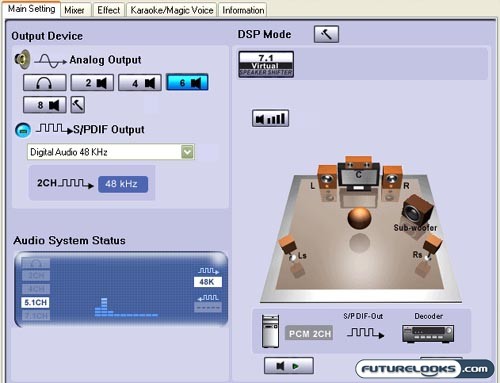
The main screen of the settings software lets you choose between the different output styles. I went with the six speaker setting, which is basically 5.1. This is displayed visually on the right side of the window. Clicking on the play button below the graphic gets the software to read out something from each “speaker”. If you want to further customize this, you can activate DSP mode and move the virtual speakers to any location you’d like.
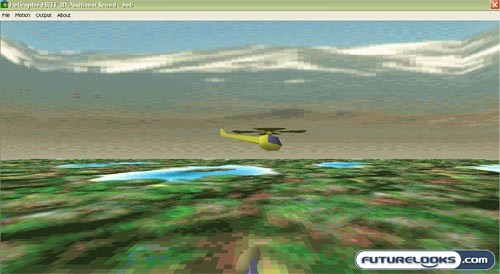
Along with the configuration software, you also get a couple of demo programs. The one shown about is that of a 3D helicopter and it flies around (and behind) you. This is meant to demonstrate the 5.1 surround. The other demo is a rock fight and you find the other rock based on sound location.
Real-Time Price and Stock Check – Shop Like a PRO!