
Installing the Dual Drive Bay
Upon first glance, it would seem that the assembly of this unit would be the easiest of the bunch. Just slide it in and go right? Unfortunately, this wasn’t the case as I will explain…
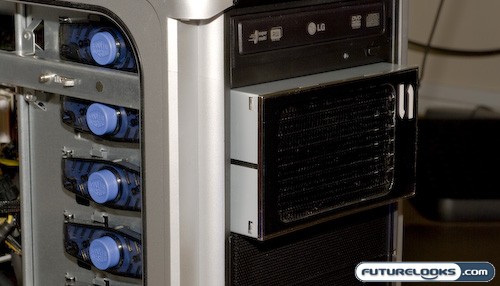
I found that installation was easiest with as many blocking plates removed as possible. This allows you to have as much space as possible to drop in your two video cards first. As I moved to pushing in the Dual Drive Bay assembly, I was surprised by how hard it was to get the unit to move in more than a couple centimeters.
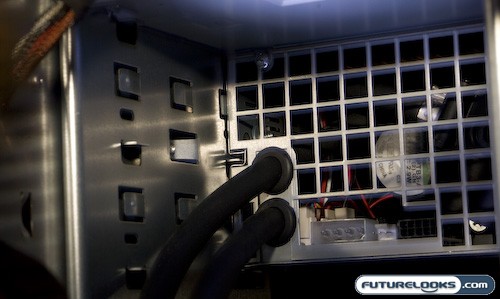
Upon further inspection, it looked like the Dual Drive Bay did not match up with the inside of my Cosmos 1000 case. In order to get it to go in, I had to fiddle with a flat head screwdriver to keep the panels of the Dual Drive Bay from expanding and keeping the bay from going in further.
When I finally got the drive bay to slide in smoothly, I was then blocked by another issue. Tabs on the Cosmos 1000 drive bays kept the Dual Drive Bay from sliding in all the way. They actually butted up against the front of the radiator. After closer inspection, it would seem that I would need to actually modify the tabs by cutting them short enough to allow the radiator to move back flush, but that would be a project for another day.
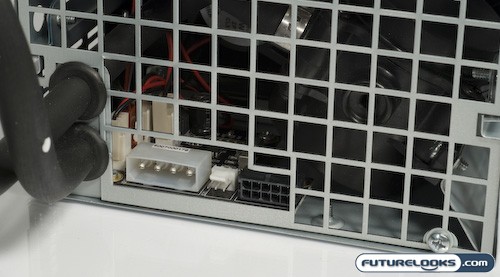
The final step in the installation is to get power going to the Dual Drive Bay by attaching a standard four pin MOLEX power connector to the back of the unit and you’re good to go. At least from a functionality perspective. I’m hoping that both the GPU plate and Dual Drive Bay fitment issues are all a result of getting possibly an early review sample. I remember back when CoolIT launched with their original products that similar issues surfaced, but they ironed them out pretty quick. Hopefully this is the case with this product as well.
The Dual Drive Bay is also compatible with CoolIT’s MTEC Control Center which provides full system monitoring and management. You can see these connections seated beside the power connector.